Skin viewer and playground
Type a username and look at the skin: as a flat avatar, as a 3D head, or as the whole player model turned to any angle and put in any of the 18 poses — or switch the subject to one of the 12 mobs and pose that instead. Every control is one of the 57 parameters from the reference, with the same names, ranges and defaults, so when the picture is right the URL beside it is the one to copy. Only parameters that differ from their default end up in it.
Subject
Output
Size, background and how the file is delivered.
Camera
Where the model is viewed from. 3D renders only.
Model
Which texture and arm width to render.
Layers
Toggle the second skin layer per body part.
Lighting
Shading and shadow.
Pose
Named poses and per-joint rotations, in degrees by default.
Joint overrides (19)
Fallback
What happens when a skin cannot be found.
320×512
URL
https://skinrender.dev/render/steve/body
Show snippets
<img src="https://skinrender.dev/render/steve/body" width="320" height="512" alt="steve" loading="lazy" decoding="async"> 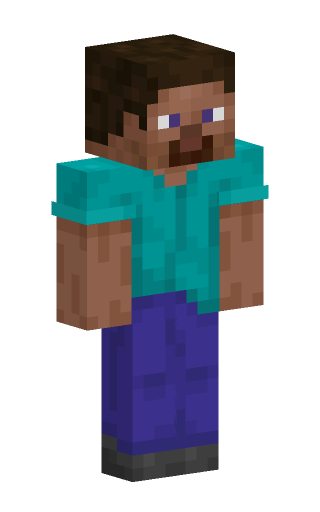 curl -o render.png "https://skinrender.dev/render/steve/body"
Tips
- Type any username, UUID or 64-character texture hash in the identifier box.
steveandalexnever need a Mojang lookup. - The address bar follows the controls, so a reload keeps your settings and the link you copy opens the playground exactly as you left it — handy for “try this” in a bug report or a chat.
- The frame slider appears for the walk, run, wave, dance poses. Turn
fitoff before rendering animation frames so the camera stays still. - Those same poses can be rendered as one animated PNG instead: set
formattoapngin the Animation section, then tune the frame count, the rate and the number of loops.fitturns itself off for an animation, so the camera does not jitter. - Switching to a mob swaps the identifier box for a mob list and leaves out everything a mob has no use for — skin layers, the arm width, the cape and the per-joint sliders. Each mob brings its own poses and variants.
- The preview fetches the real API, so the millisecond figure under it is the true render time from the
X-Render-Msheader. - Unknown parameters are never generated here, but if you hand-edit a URL and mistype one, the
X-Ignored-Paramsheader names it.
Prefer reading? Start with getting started or the examples.
Frequently asked questions
How do I look at someone’s Minecraft skin?
Type their username in the identifier box. The preview is a real render of the skin they are wearing right now, fetched from Mojang, so it changes the day they do. A UUID or a texture hash works the same way, and steve or alex shows a default skin without looking anything up.
Can I see the back of a skin, or the top of the head?
Yes. yaw turns the model — 180 shows the back — and pitch tips it, so a high pitch looks down on the head. The front and back render types give the flat, laid-out view that skin sites show instead.
Can it render mobs as well as players?
Yes. Switch the subject from Player skin to Mob and the controls follow: the 12 mobs on the site, their own poses and their colour variants, as a body or a head render. The URL becomes /render/mob/<mob>/<body|head>.
Can I get a moving render instead of a still one?
For a pose that cycles — walk, run, dance, wave, and a mob’s own walk — the Animation section offers format=apng, an animated PNG of the whole loop. Frame count, frames per second and how many times it repeats are all controls. It plays in an ordinary <img>, with no video tag and no JavaScript.
Is this a skin editor?
No. It renders skins, it does not change them. If you want the file itself to open in an editor, the skin download guide shows how to save the raw 64×64 PNG.
Do I need an account, or to install anything?
Neither. Everything happens in the page, and the settings live in the address bar, so a bookmark or a pasted link opens the same view again.